

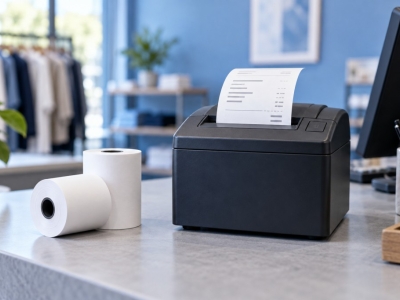
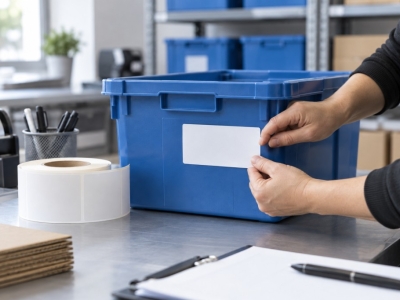

A PDF can look clear on screen yet print incorrectly when page and label sizes differ. Check three layers: file, driver and roll. Start with a test parcel before releasing a whole queue.
Download the intended label format
If the shipping platform offers several outputs, choose the one intended for a label printer. An A4 page containing several items is not the same as a label-sized page. Use the carrier’s options rather than reconstructing the document from a screenshot.
Match the dimensions
Read the PDF dimensions and compare them with the roll and printer’s printable area. Similar commercial names do not ensure identical sizes. Set the correct paper size in the driver, then check orientation, margins and rotation options.
Control scaling
Fit-to-page or shrink options can change the label size. When the file already has the correct dimensions, print at its intended size according to carrier instructions. If it does not fit, identify the reason instead of reducing it until it fits.
Inspect a complete sample
Check for clipped text or codes and confirm all important information is legible. Test the barcode with available equipment and compare the data with the parcel. The print preview is not approval of the physical result.
Save a profile for each workflow
Name validated settings clearly with carrier, size and printer. Repeat the test after changing workstation, driver or PDF template. The carrier’s specification remains the reference for dimensional and quality requirements.
Match your supplies to the application
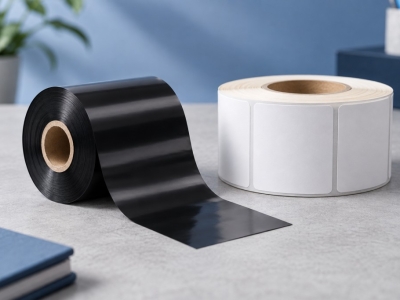
Explore SEGO's consumables range. To check a reference, send us the dimensions and exact machine model.