

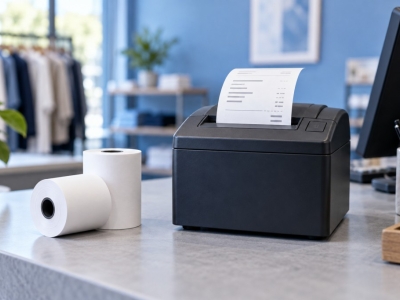


The roll feeds normally, but no text appears. This needs a different diagnosis from a paper jam. Stop the queue and work with short tests to avoid wasting a whole box.
Start with an internal test
Print the configuration page or built-in test described in the manual. If it works, the machine and consumable can produce an image: check the document, selected driver and printable area. If it remains blank, investigate the media and printing mode first.
Check the consumable technology
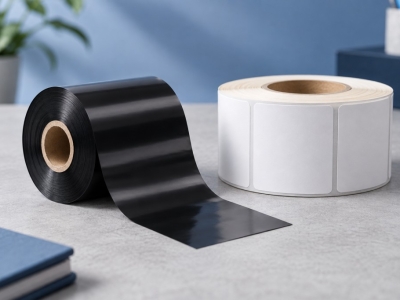
Direct thermal printing uses heat-sensitive stock without a ribbon. Thermal transfer requires an ink ribbon and compatible stock. A paper label intended for transfer does not become direct thermal media simply because its dimensions match. Find the box reference and compare it with the technical specification.
Check loading and orientation
The printable surface must face the printhead. For transfer printing, also check the ribbon path and ink orientation against the manufacturer’s diagram. A roll fitting inside the printer does not necessarily mean it is loaded correctly. Never force the lid closed.
Rule out an empty layout
White text, incorrect orientation or content outside the label area can make a print look blank. Send a simple document containing black characters at the exact media size. Confirm the selected printer and driver model rather than assuming the default destination is correct.
Before ordering another roll
Try a previously approved reference if available. Record the internal-test result and the references of both label and ribbon. If the internal test still fails with correct loading, contact maintenance. Turning the heat to maximum is not a diagnosis.
Match your supplies to the application
Explore SEGO's consumables range. To check a reference, send us the dimensions and exact machine model.
Technical documentation : read the manufacturer’s guidance.